Quizmaster
One Windows program that runs an entire quiz night, with an editor in which you make the questions and the layout. The scores live in an Excel file, and the app draws the slides itself. You sit at screen 1, the audience watches screen 2, and Office does not need to be installed.
New in version 0.3.0: an editor that edits the rounds and the layout graphically, with the slide as preview; PowerPoint support has been removed. Version 0.2.0 brought an Answers stamp on the answer round, highlighted text, covering part of a photo and transitions between slides. See what's new, with pictures.
What it looks like
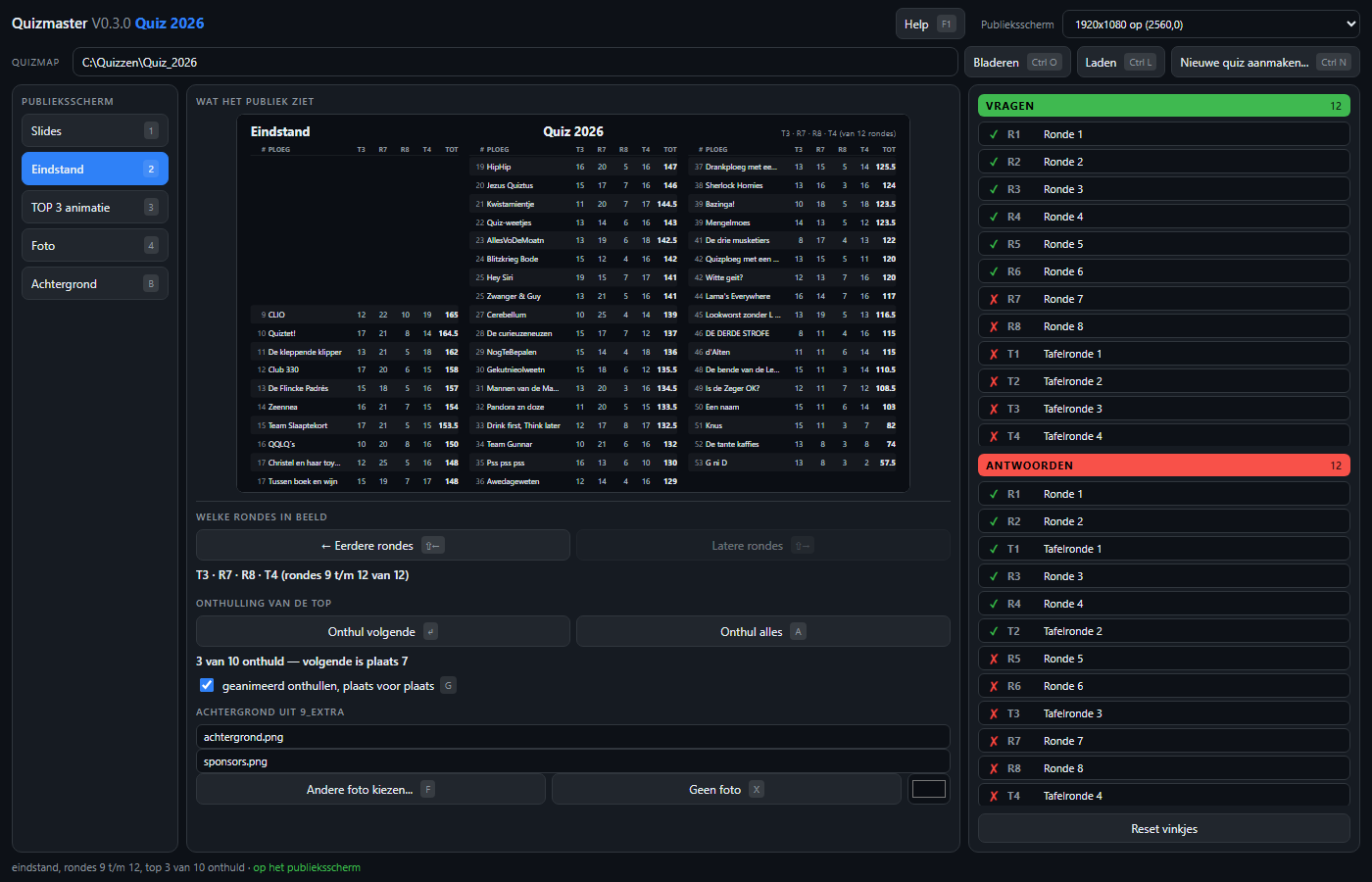
Two windows, two screens
Two windows are involved, both belonging to Quizmaster: the control window on your screen and the audience window on the projector. That audience window draws everything itself - the slides of the round, the standings, the podium, the photo with the clock.
Screen 1 - the quizmaster          Screen 2 - the projector
+---------------------------+       +---------------------------+
| CONTROL WINDOW            |       | AUDIENCE WINDOW           |
|                           |       | slides - standings        |
|   +-------------------+   |       | podium - photo - idle     |
|   | preview           |<--+-------|                           |
|   +-------------------+   |       +---------------------------+
| questions - answers       |
+---------------------------+
The preview box on the controls is the same page as on the projector, scaled down. Switching what is shown never touches the loaded round: switching back to the slides is immediate and you land on the same slide.
Quick start
- Connect the projector and start
quiz-app.exe. - Choose the audience screen at the top right. The app already picks the first non-primary screen by itself, so it is usually right straight away.
-
Click Browse and point to your quiz folder - the folder with
1_Questions,3_Answersand the score file. One click loads the whole evening. - Click the first question in the list on the right. The audience sees the first slide. → takes you further.
The five audience screens
Slides 1
The slides of the round.
Standings 2
Four rounds plus total, every team on one screen.
TOP 3 3
The podium, one team revealed at a time.
Photo 4
A photo with the countdown clock above it.
Background B
Idle image: a plain colour or a full-screen photo.
Two programs
quiz-app.exe
The controls for the evening itself: choose screens, show slides, the standings and the clock.
quiz-editor.exe
The editor for beforehand: put rounds and layout together graphically, with the slide in view.
What you need
| Item | Why |
|---|---|
| Windows 10 or newer | The app places its windows through Windows APIs. Office is not needed. |
| A second screen | Everything works without a projector, but then you only see the preview box. |
| Excel (optional) | Only to fill in the scores. The app reads the file itself. |
| A little Dutch | The control window and its built-in help are in Dutch; the editor speaks Dutch, English or French. |
The program is a single file of barely four megabytes. There is no installer, no registry, no runtime: copy it and double-click.
Where everything lives
| Path | What |
|---|---|
%APPDATA%\Quizmaster\config.json | Your settings: last quiz folder, screen choice, colours, photos. |
%APPDATA%\Quizmaster\afgespeeld.json | Which presentations you have already shown. |
| the quiz folder | Everything of the quiz itself. The app writes nothing of the quiz there; only a few small helper files are placed next to the rounds. |
The app deliberately writes nothing of the quiz into your quiz folder. During the evening that folder is often on a shared drive where someone else is updating the scores; writing into it would collide with that.