The control screen
Everything you need during the evening is on one window, and nothing more than that. The buttons of a screen that is not being shown are not shown either.
The layout
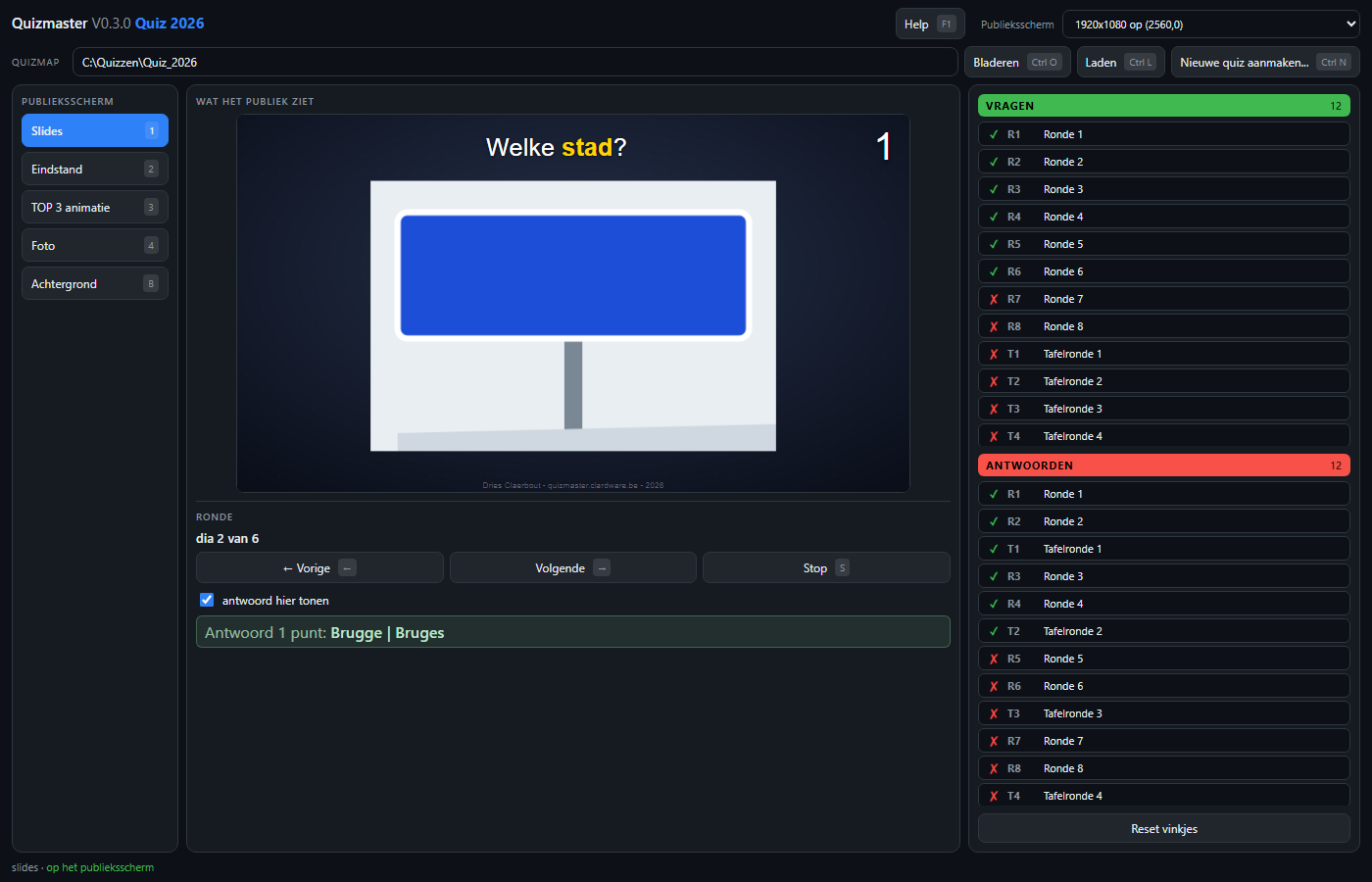
| Part | What for |
|---|---|
| Top bar | Loading the quiz folder and choosing the audience screen. |
| Audience screen | The five buttons that decide what the room sees. |
| What the audience sees | The preview box, with the controls of exactly that screen underneath. |
| Questions and answers | The presentations of the evening, green and red, with a tick for what has already been shown. |
The preview box
What you see in the preview box is no approximation but literally the same image the room gets: the same page as the audience window, in a frame scaled down from 1920 pixels wide to the width of the box. That includes the slides.
Choosing the audience screen
At the top right is a list of all connected screens. Your choice is remembered by device name and not by number - that number shifts as soon as you plug in a projector, and your choice would land on the wrong screen.
Choose none - preview only and no audience window appears. Handy on a laptop without a second screen: a full-screen window would cover the controls. The preview box then shows everything the audience would see.
You cannot lock yourself out
The audience window is full-screen, has no title bar and is not in the taskbar. If it ever came to lie over the controls there would be no way back. Three measures prevent that:
- The screen the controls are on is not selectable. If you drag the control window there anyway, the app releases that screen and falls back to the preview only.
- While an audience screen is active the control window is always on top, above your other programs too. Choose "none" and it becomes an ordinary window again.
- Pull out the projector cable and Windows moves that full-screen window to the remaining screen. The app notices within a quarter of a second and releases the audience screen. Plug the screen back in and it picks it up again by itself.
Questions and answers
On the right are all the rounds of the evening: the questions on a green field, the answers on a red one. Clicking loads the round and puts it on the audience screen at once. In front of every line is a green ✓ or red ✗ for what you have already shown; clicking that tick flips it by hand.
Reset ticks sets everything back to not played, for the start of a new evening. This is kept in your own settings, not in the quiz folder.
Open a new round while one is still loaded and the previous one is released automatically. You do not have to press Stop first.
Keyboard shortcuts
Almost everything can be done from the keyboard, and the key is printed on the button itself - you do not need to memorise this table. The keys press the buttons themselves: if a button is disabled, the key does nothing either.
| Key | Action |
|---|---|
| 1 2 3 4 | slides, standings, top 3, photo |
| B | background |
| → space PageDown | next slide |
| ← PageUp | previous slide |
| S | stop the round |
| Enter | reveal the next place (standings or podium) |
| A | reveal everything |
| 0 | reset the podium |
| Shift+← → | shift the round window of the standings |
| ↑ ↓ | countdown clock one minute more or less |
| Shift+↑ ↓ | five minutes |
| Ctrl+↑ ↓ | ten minutes |
| T | start or pause the clock |
| R | reset the clock to fifteen minutes |
| F | choose another photo |
| X | no photo |
| G | animated reveal on or off |
| Ctrl+O L N | browse, load, new quiz |
Enter, A, F and X do what fits the screen being shown: on the photo screen F chooses the photo with the clock, on the background screen the idle image.
Everything to do with the quiz folder sits behind Ctrl. Those open dialogs, and you do not want to open those with a single letter while an audience is watching.
The countdown clock
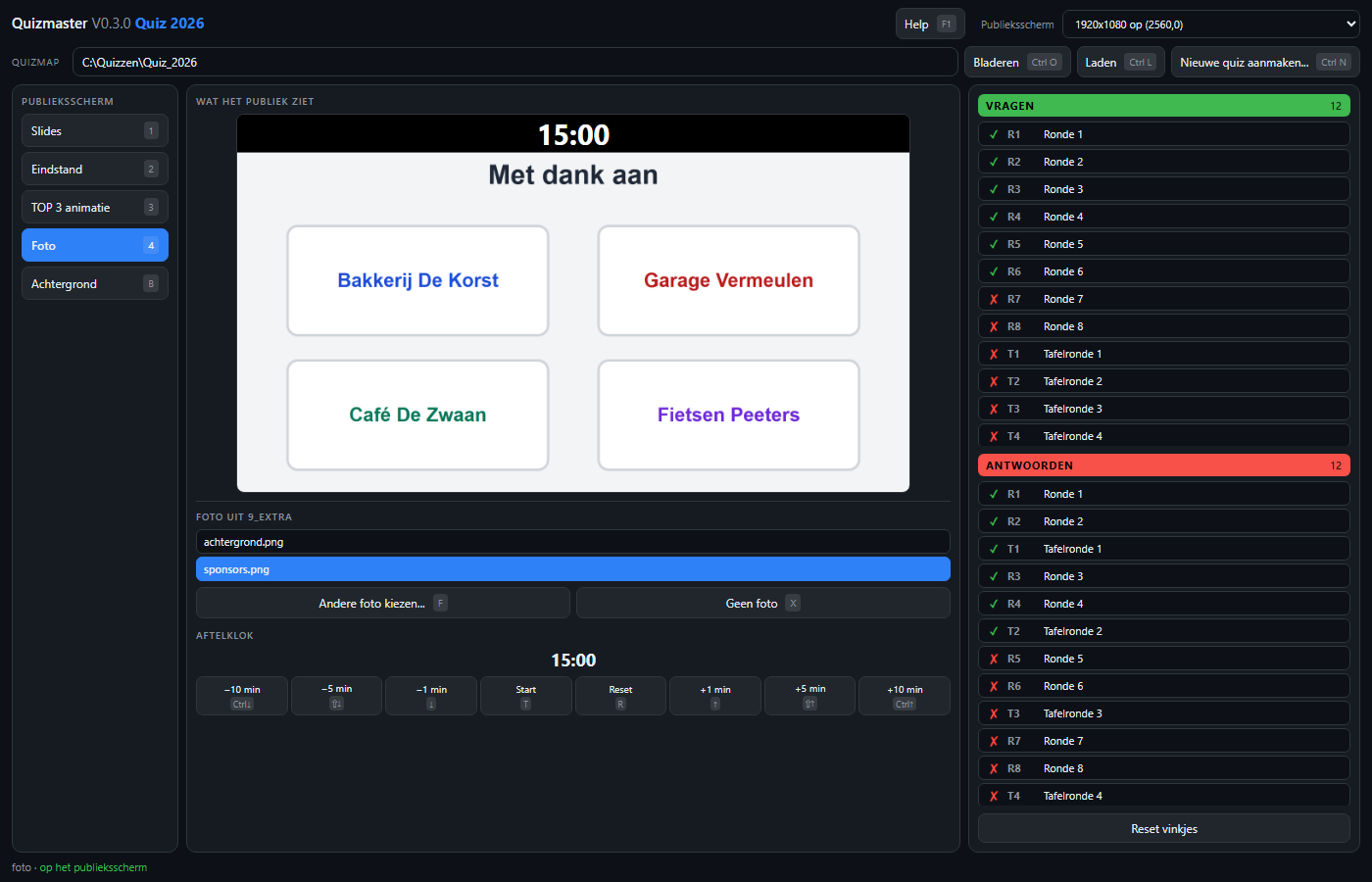
The clock starts at fifteen minutes and can be adjusted with plus and minus buttons of 1, 5 and 10 minutes, also while it is running. It keeps running while you show slides or the standings, so the right time is on screen the moment you switch to the photo screen.
At zero a gong sounds. It only fires when the clock ticked its way there: set it to zero with the minus buttons and it stays silent. The sound comes from the control window and goes to the Windows audio device, so if your room audio hangs off the projector over HDMI, it plays along automatically.
Windows only lets a page play sound after someone has clicked in that window. During a quiz that has long since happened, but test it if starting the clock is the very first thing you do.