The five audience screens
What the room sees, you choose with five buttons. Switching is immediate and never touches the loaded round: you can go back and forth as often as you like.
Slides 1
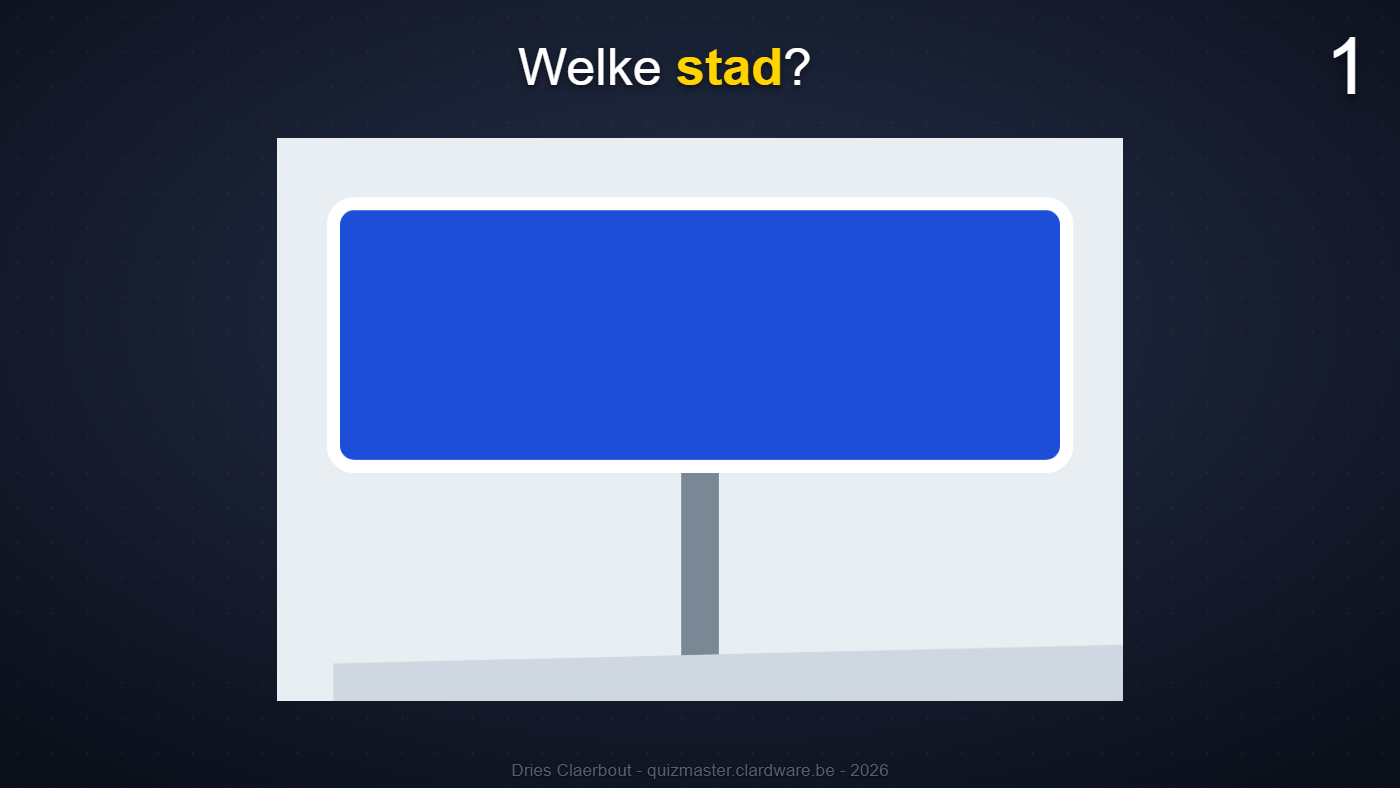
The slides of the open round, as you made them in the editor. →, space or PageDown take you one slide further, ← back. The control screen reports slide 3 of 12 and shows the answer from the round file underneath - only there, never on the projector.
Stepping past the last slide does nothing: the round stays on its last slide instead of dropping away because you clicked one time too many.
If you stop the round, the audience screen automatically goes to the photo and not to the background. At the end of a round, the time to answer is exactly what the room wants to see.
Standings 2
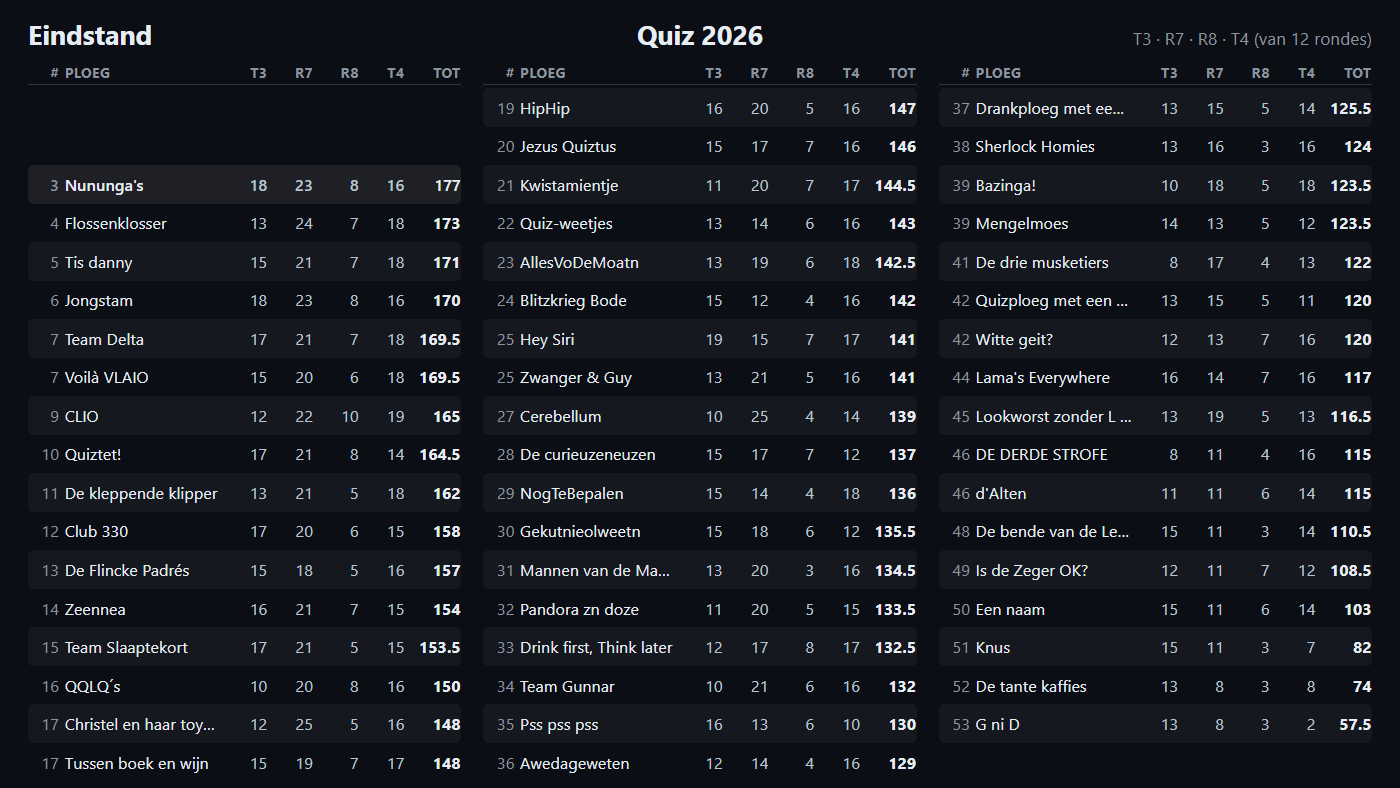
Above the list it says Final standings on the left as soon as the last round column in the score file is filled in, and Interim standings until then. The room must not think it is over while another round is still to come. In the centre is the name of the quiz folder, on the right which rounds are on screen.
Always the last four rounds with scores
The screen shows the last four rounds that have points in them, not the last four columns of the file. Halfway through the evening those are mostly empty, and the room would be looking at empty columns while the rounds actually played fall just outside. Fill in a round during the quiz and save, and that window slides along within a second.
With Shift+← and Shift+→ you look back at earlier rounds. The window only jumps along again once new points come in.
Revealing the top ten
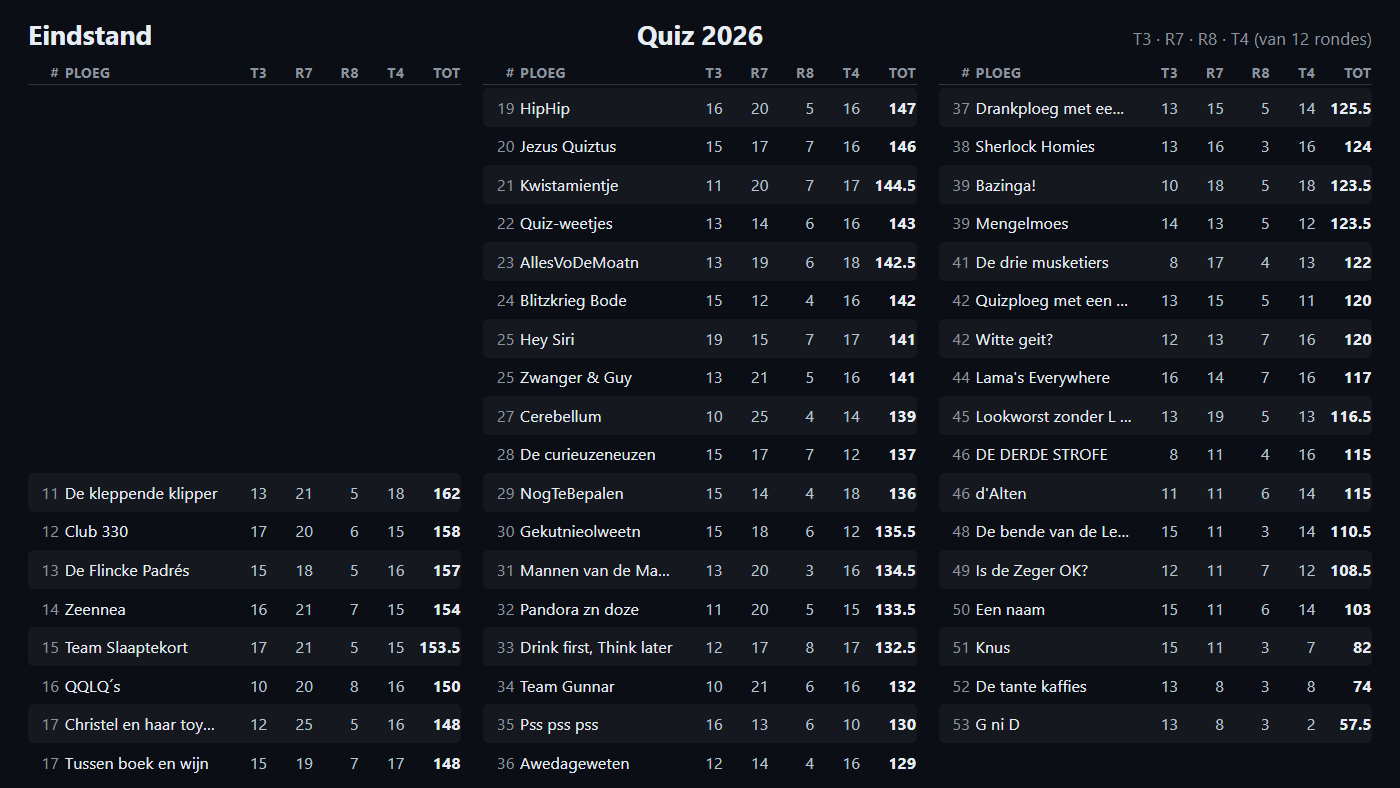
You build the top ten from place ten to place one, with Enter or the button. The rest of the field is there right away: everyone sees where they stand and the suspense is only about the head of the ranking. If you want the whole standings at once, switch the animated flag off (G) or press A.
The teams are spread over at most three columns - with 53 teams that is three columns of eighteen - and every team name gets at least eighteen characters of width. Longer names are cut off.
TOP 3 animation 3
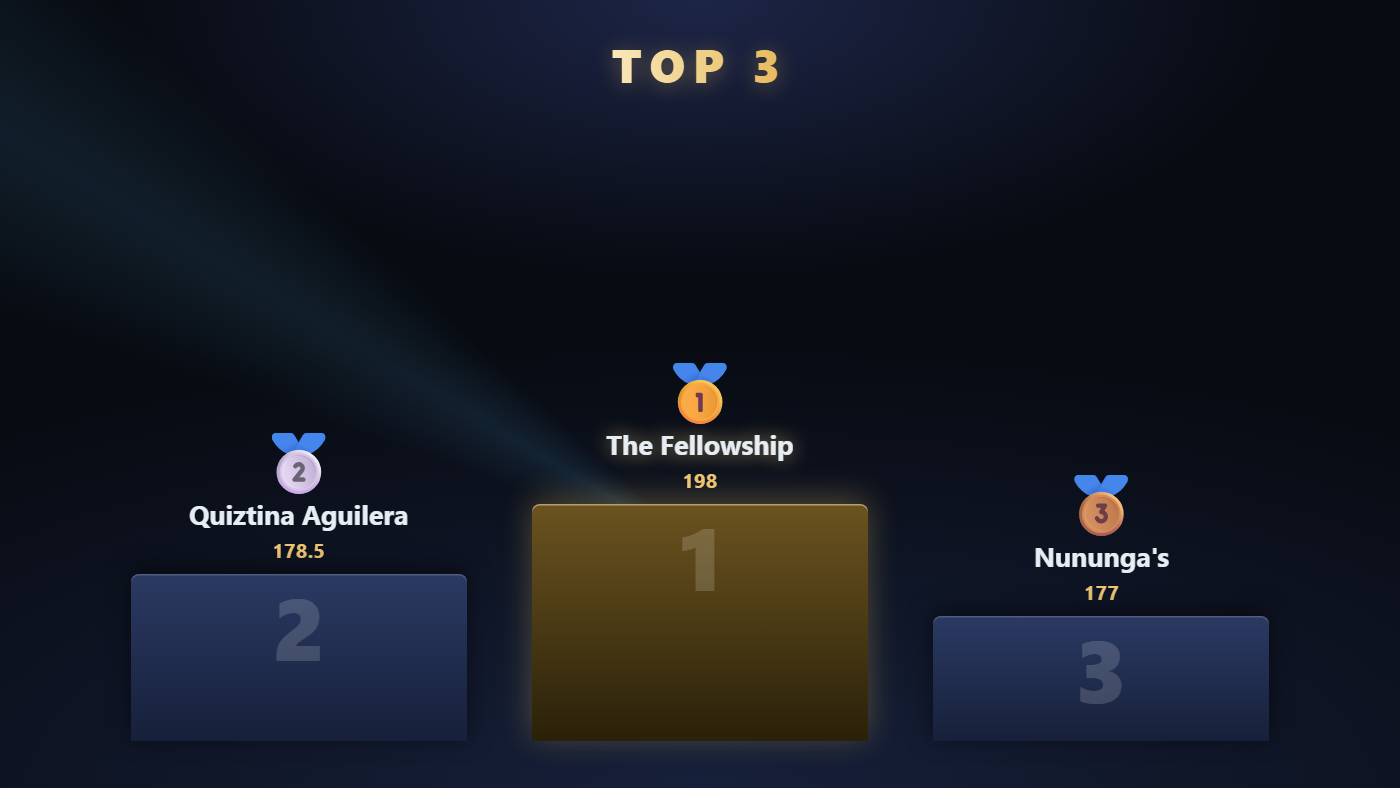
The podium starts empty. With Enter or Reveal next a team is added each time: first third place, then second, then the winner. The column grows from the bottom up, a streak of light passes over it, and the winner's name glows.


0 resets the podium so you can do it again. With the animated flag off it appears complete at once.
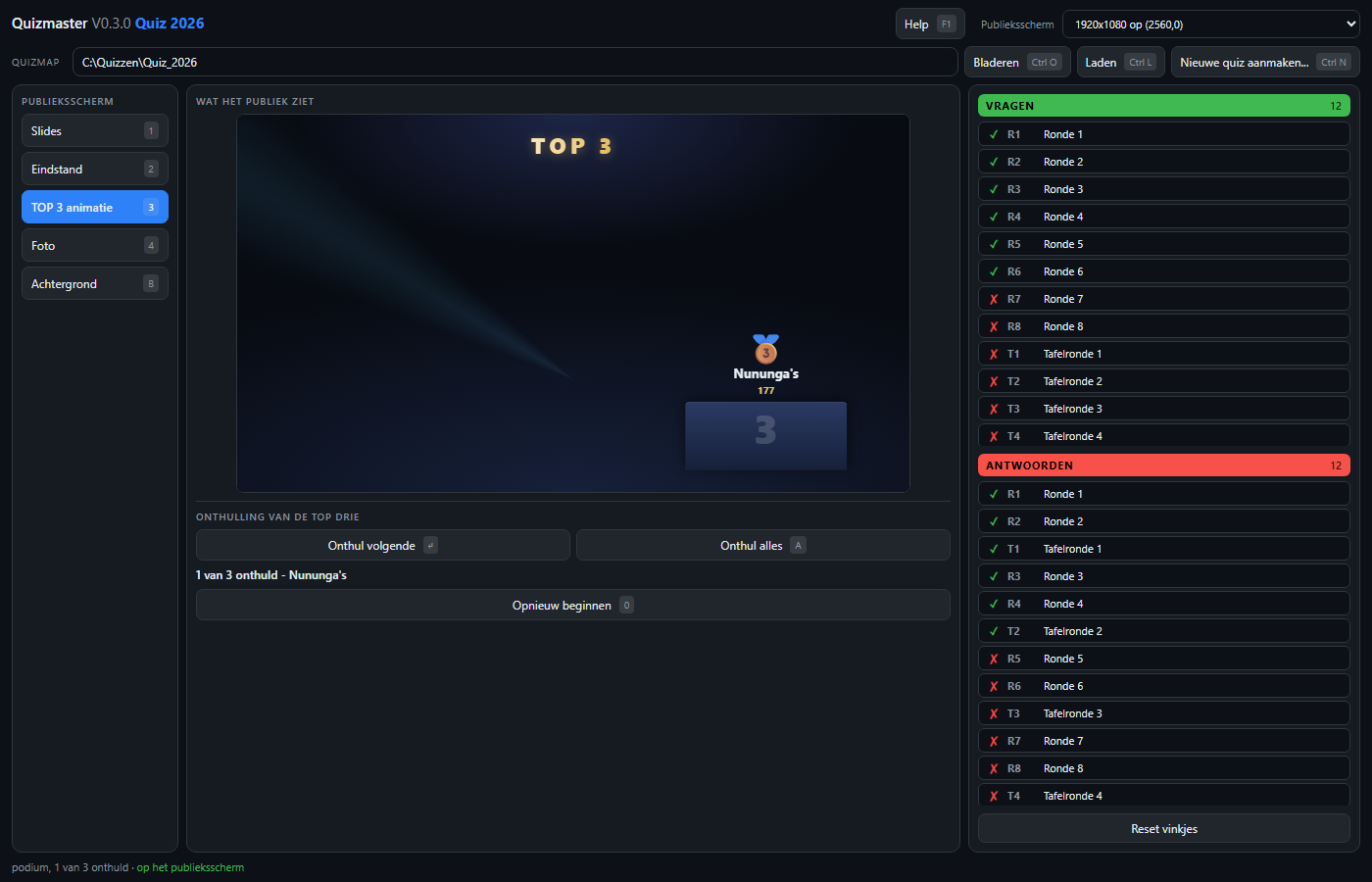
If two teams share a place they get the same column height and the same medal. Only the column they stand in differs, since there are only three of those.
Photo 4
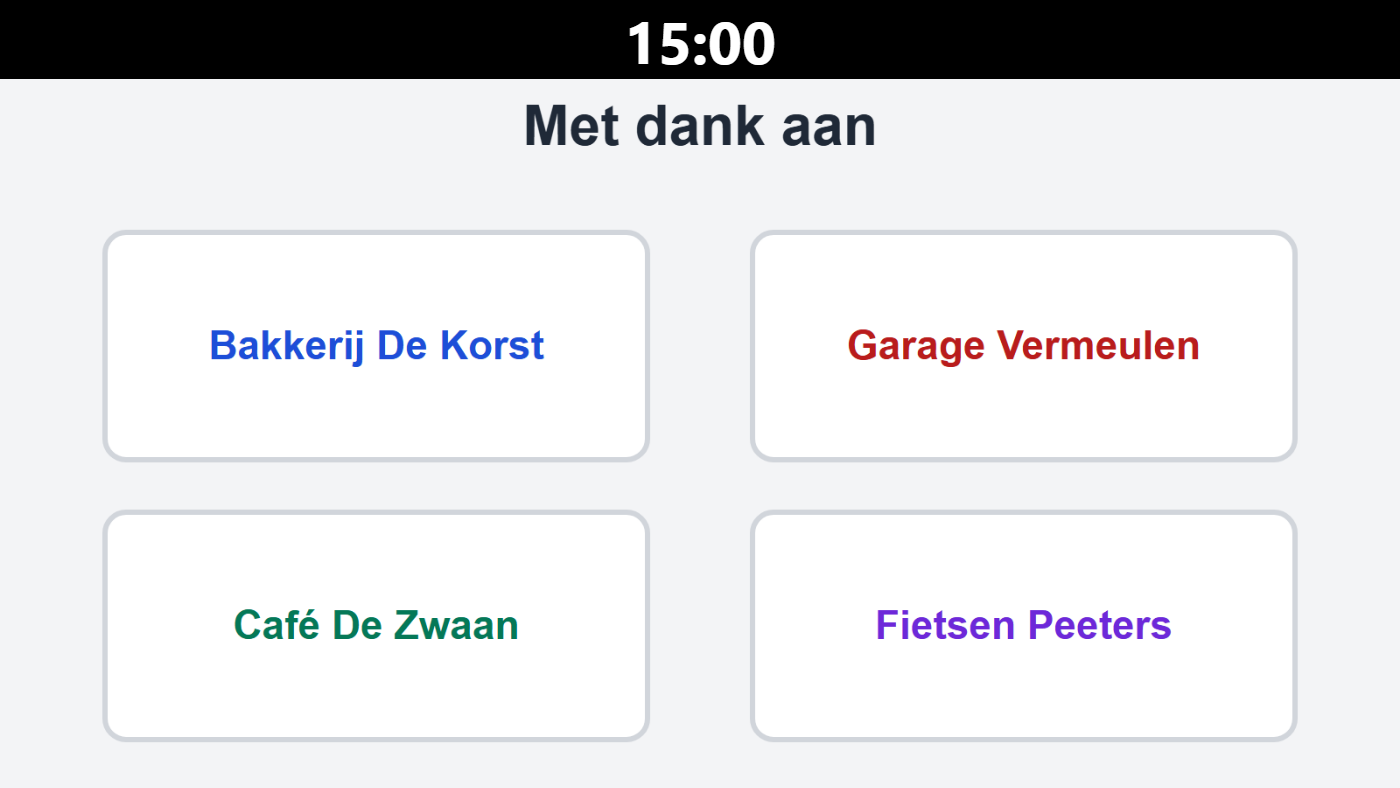
A photo from the 9_Extra folder of your quiz folder, with the countdown clock
as a band above it. This is the screen for while a round is being filled in: the room sees
how much time is left, and below it your sponsor page, for instance.
Clock and photo do not overlap. The clock therefore covers no part of the photo, and the time does not have to stay readable over a light photo. When time is up the whole band turns red - and the gong sounds.
Choose a photo from the list, or with F another one from disk. X removes the photo; only the clock remains.
Background B

This is what is shown when nothing needs to be seen for a moment: during the break, or while you prepare the next round. By default a plain colour - usually black - but you can also put a photo on it that fills the whole screen.
That photo is a separate choice from the one on the photo screen. So you can alternate a sponsor page with the clock and an idle image without choosing again every time. No photo chosen means: the colour.
The colour also stays under the photo, so nothing shows through with a different aspect ratio.
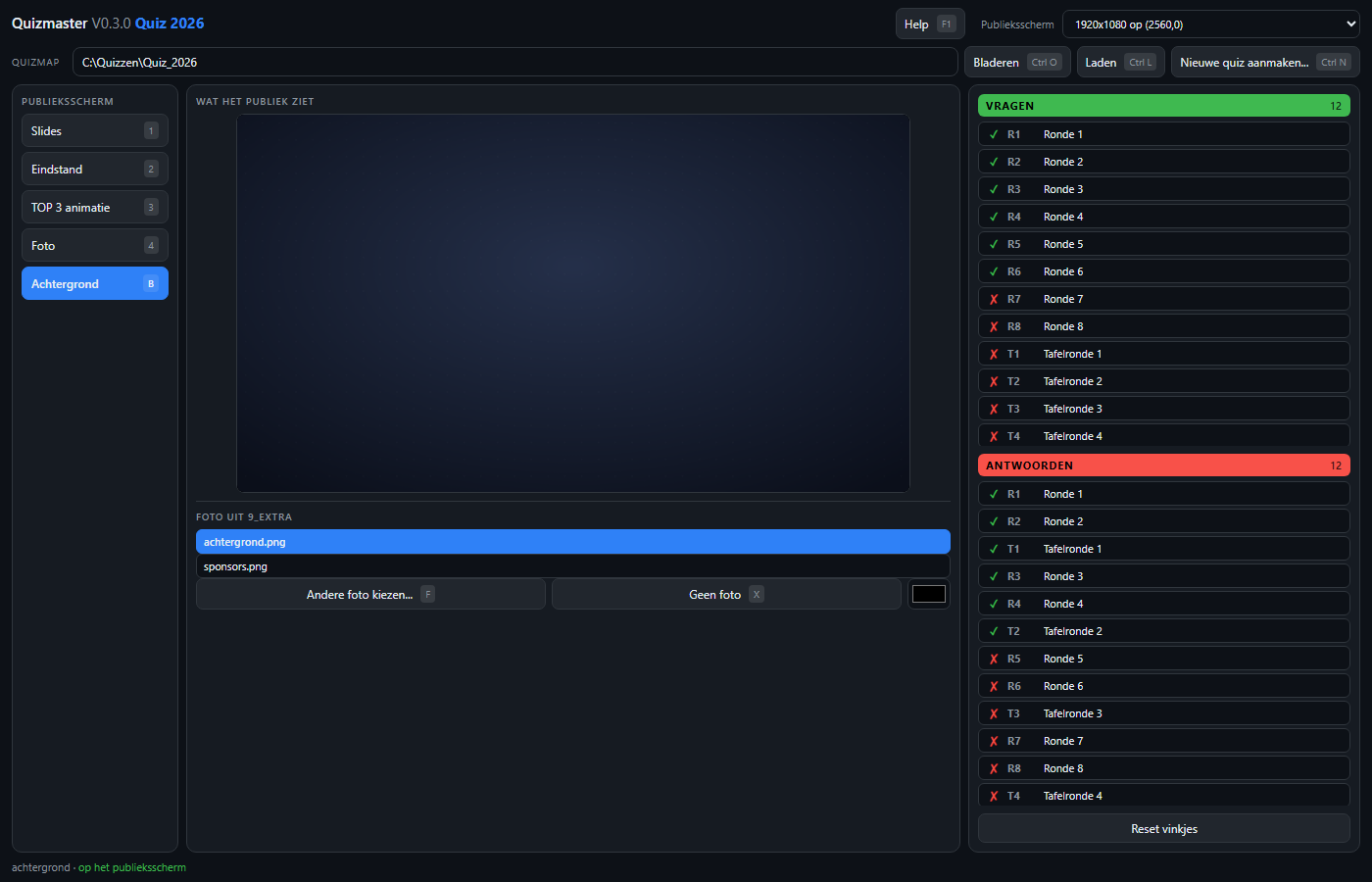
9_Extra, with underneath the colour for when no photo is chosen.